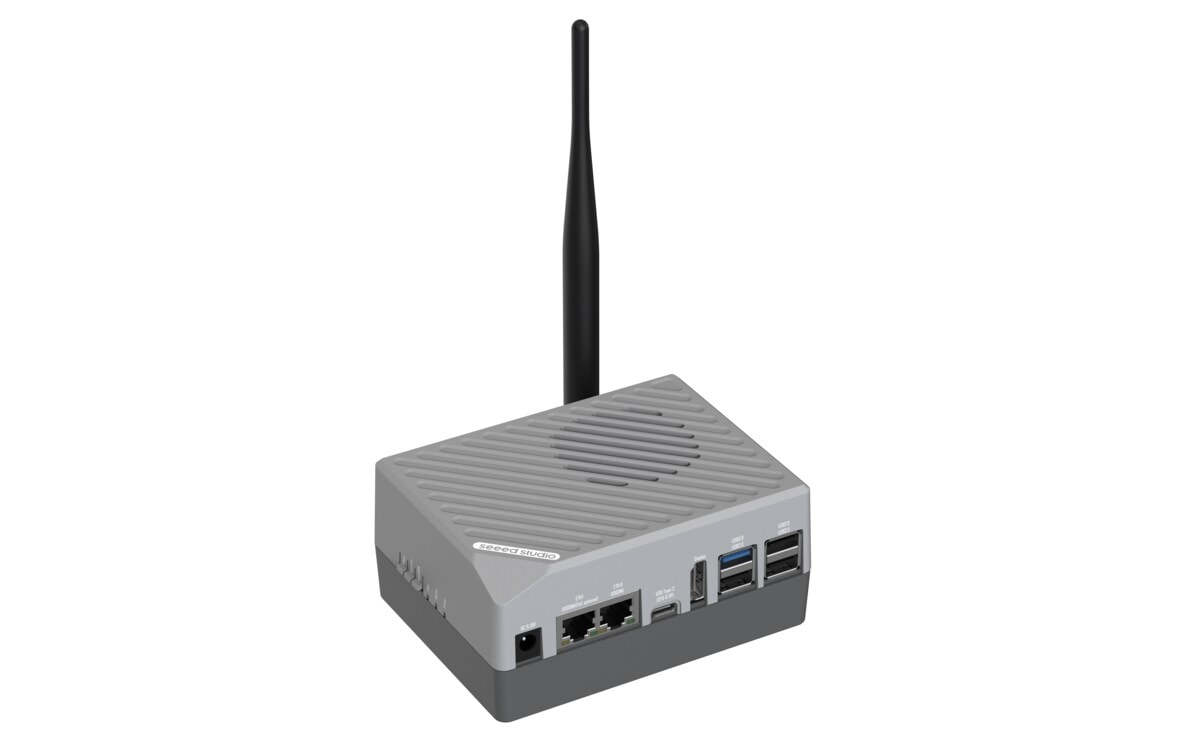
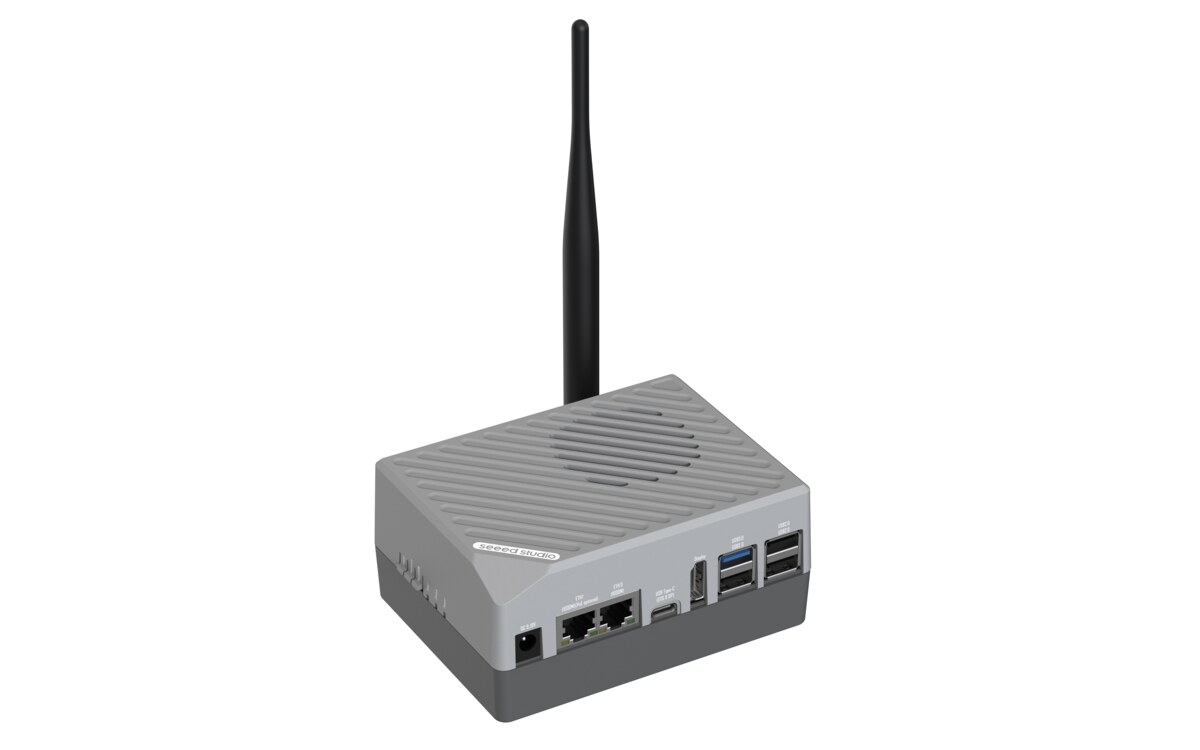
Preset: RK3576 Object Detection {#rk3576_cv}
Deploy YOLO 11 object detection to your reComputer RK3576 with one click.
| Device | Purpose |
|---|
| reComputer RK3576 | Runs YOLO 11 with RKNN NPU acceleration |
| USB Camera (optional) | Real-time video detection input |
What you'll get:
- YOLO 11 detection API running locally on your device
- Choose from 3 model sizes: Nano (fastest), Small (balanced), Medium (most accurate)
- REST API for image/video detection + MJPEG live video feed
- Supports 80 COCO object classes out of the box
Requirements: RK3576 device with SSH access + Docker installed
Step 1: Deploy YOLO 11 {#deploy_cv type=docker_deploy required=true config=devices/rk3576.yaml}
Deploy the object detection container to your RK3576 device.
Target: Remote Deployment {#rk3576_remote type=remote config=devices/rk3576.yaml default=true}
Deploy to your RK3576 over SSH with one click.
Wiring
- Connect RK3576 to the same network as your computer
- Plug in USB camera if you want real-time video detection
- Select the model size (Nano recommended for beginners)
- Fill in device IP, SSH username, and password
- Click Deploy
Deployment Complete
- The YOLO container is running on your RK3576
- Detection API:
http://<device-ip>:8000/api/models/yolo11/predict
- Live video feed:
http://<device-ip>:8000/api/video_feed (requires camera)
- Web preview:
http://<device-ip>:8000 (if available)
Troubleshooting
| Issue | Solution |
|---|
| SSH connection failed | Verify IP address, username, password |
| NPU not detected | Ensure device is RK3576 with RKNPU kernel module loaded |
| No camera detected | Check USB camera is connected. Detection still works with image upload API |
| Image pull slow | Check network connection. Image is about 1-2GB |
Step 2: Try Detection {#verify_cv type=image_predict}
Verify the detection service is working.
Mode: Image Detection {#image_mode config=devices/cv_image.yaml default=true}
Upload an image to test object detection.
Troubleshooting
| Issue | Solution |
|---|
| No detections | Try an image with people or vehicles |
| Connection refused | Wait 15-30 seconds for service to start |
Mode: Live Video {#video_mode config=devices/cv_stream.yaml}
View live camera feed with detection bounding boxes (requires USB camera).
Troubleshooting
| Issue | Solution |
|---|
| Black screen | Check USB camera is connected |
| No video feed | Verify MJPEG URL is correct |
Deployment Complete
YOLO 11 object detection is running on your RK3576 device.
Image Upload Example
curl -X POST http://<device-ip>:8000/api/models/yolo11/predict \
  -F "file=@photo.jpg" \
  -F "conf=0.5"
Live Video Feed
Open in browser: http://<device-ip>:8000/api/video_feed
Adjust Detection Thresholds
curl -X POST http://<device-ip>:8000/api/config \
  -H "Content-Type: application/json" \
  -d '{"obj_thresh": 0.3, "nms_thresh": 0.5}'