対話型デスクトップロボット
会話できる卓上ロボットが、頭とアンテナの動きで表情をつくります。
デスクトップロボットを音声コンパニオンに——聞いて、考えて、話し、1 秒未満で感情を表現します。Reachy Mini に対応。デプロイ方式は Jetson オールインワン、Hailo-8 NPU 搭載の reComputer AI Industrial R21、CM4 ワイヤレスの 3 通りから選べます。
再利用できる現場テンプレート
声を出して動く卓上ロボットが必要で、対話を施設の外に出したくない場所。
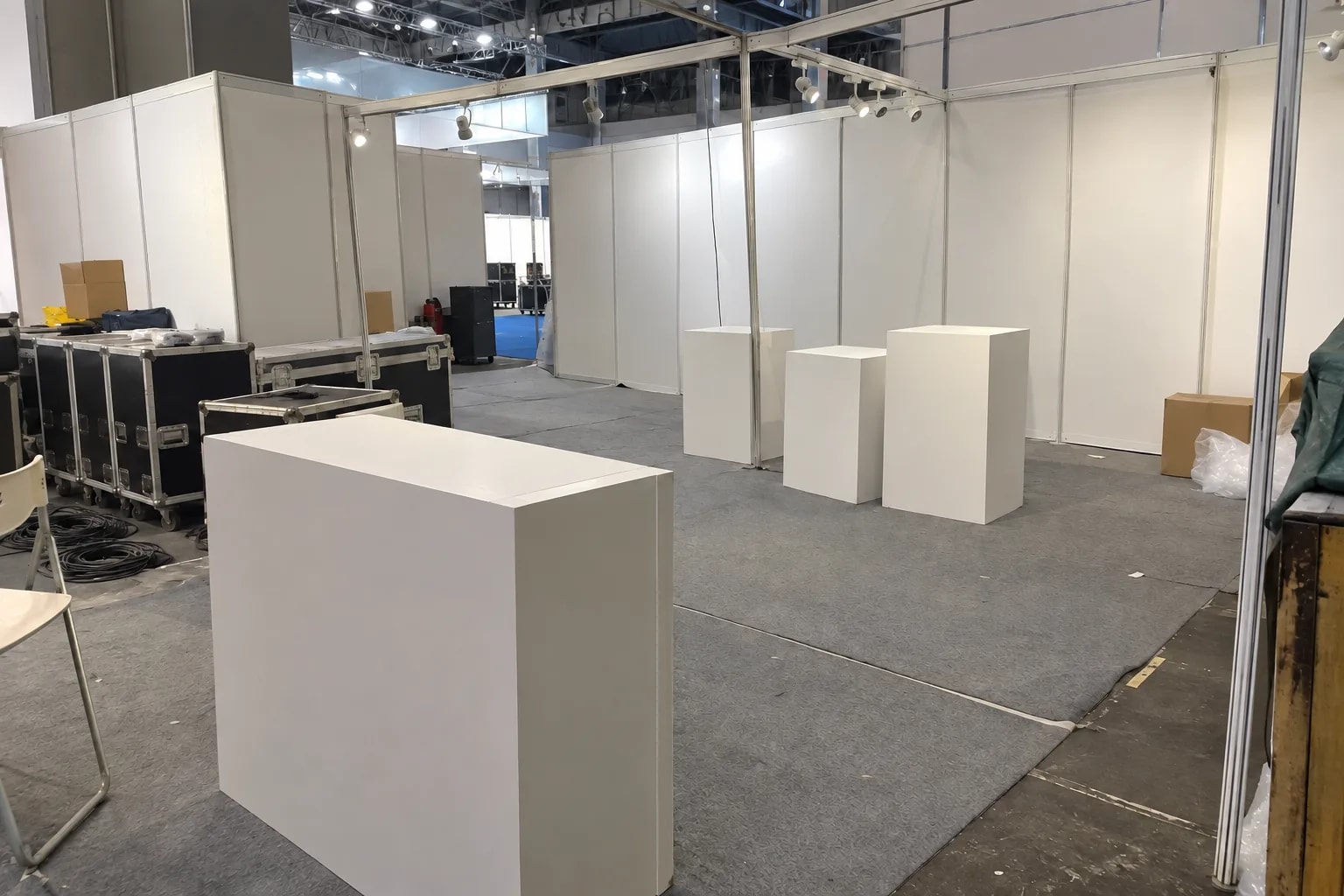
展示会とショールーム
展示会のブース、企業のショールーム、科学館の展示台。誰もいないときは独り言を話し、人が来ると応答します。
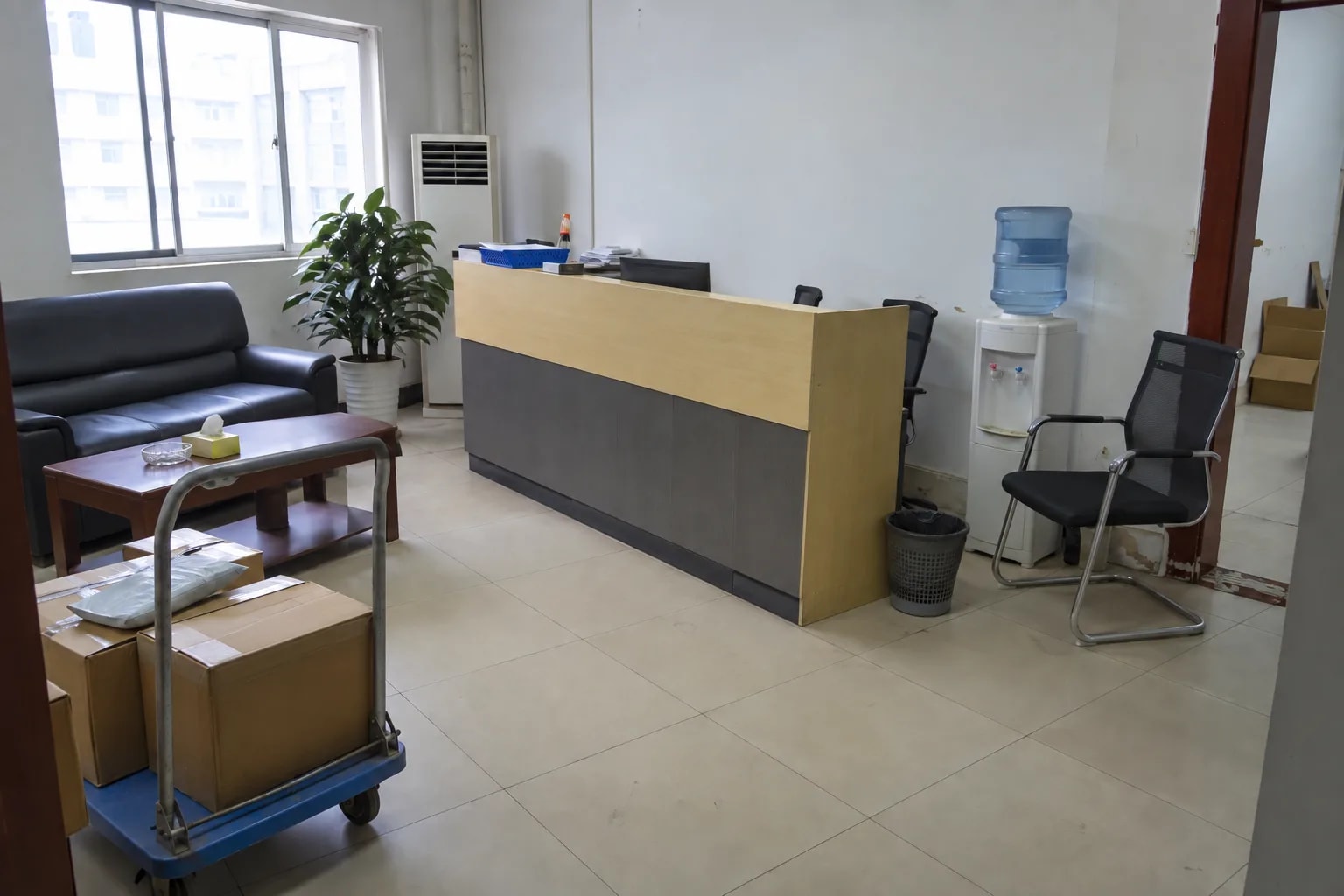
受付とフロント
企業の受付、店舗の接客カウンター、マンションギャラリー。対話と頭やアンテナの動きで来客を迎えます。
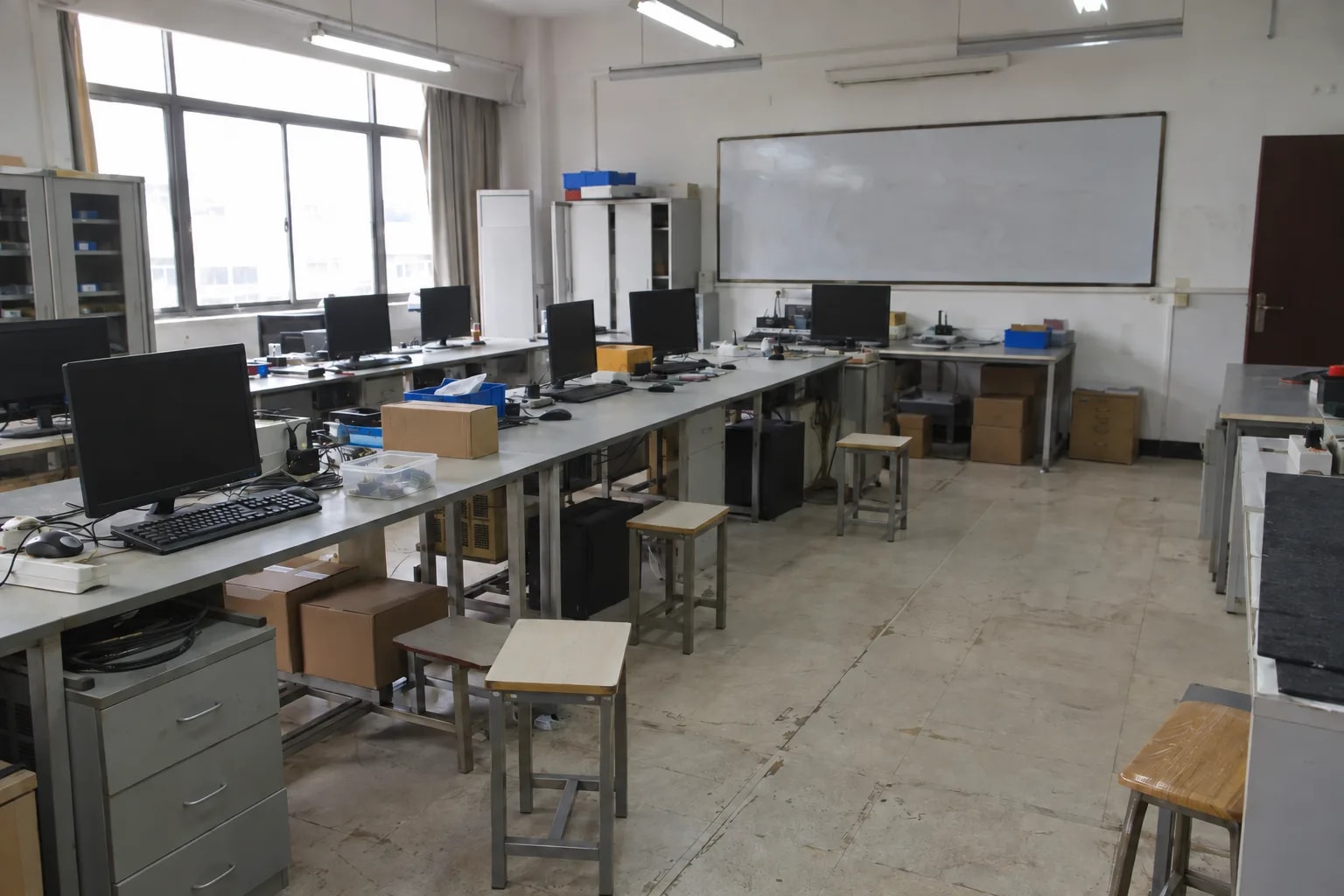
教育と人とロボットの対話研究
大学の研究室、専門学校の実習室。人格設定、話す速度、感度を変更でき、処理はすべて手元で完結します。
適さない条件:人の声が聞き取れないほど騒がしい環境。ネット検索やクラウドの大規模モデルの知識が必要な質問。
どう実現するか
Reachy Mini が本体と動作を担い、ロボットサービス用ホストが制御を行い、reComputer J40 シリーズが音声と対話モデルを動かします。一体型の構成では後者の 2 台を 1 台にまとめます。
3 つの要素で構成されます。ロボット本体、ロボットサービスを動かすホスト、音声と言語モデルを担う Jetson です。一体型パッケージでは後者 2 つは同じ reComputer J40 になります。
構成1:Jetson 一体型
Reachy Mini デスクトップロボットは、頭部、両腕、アンテナ、マイク、スピーカー、カメラを備えます。有線版:USB でホストに接続し、マイク、映像、動作指令は 1 本のケーブルで共有されます。
ホストは reComputer J40 シリーズ(J4012、Orin NX 16GB) 1 台です。ロボット制御、対話エンジン、視覚処理(顔、表情、人物追跡)、ダッシュボード、音声認識・合成、Qwen3.5-4B 対話モデルをすべてこの 1 台で実行します:デバイス数が最小で、すべてを 1 台に収められます。
- 視覚処理:GPU 上で実行します。
- 音声:中国語と英語の認識に対応し、デフォルトの音声は表現力のある音色です。
- 言語モデル:GPU メモリ約 6 GB、ディスク 15 GB 以上が必要で、J40 シリーズ(Orin NX 16GB)単体で満たします。
- 初回起動:推論エンジンとモデル重みをダウンロードしてウォームアップし、所要約 10 分。以降の再起動は高速です。
デプロイ時にサービス群を約 5 GB、モデルを約 1.5 GB ダウンロードし、以降はオフラインで動作します。
机の上に設置し、スピーカーを正面に置き、あまり騒がしくない部屋で使用してください。データインターフェースは下記「取得できるデータ」を参照してください。
構成2:reComputer AI Industrial R21 + Hailo-8
Reachy Mini デスクトップロボットは、頭部、両腕、アンテナ、マイク、スピーカー、カメラを備えます。有線版:USB でホストに接続し、マイク、映像、動作指令は 1 本のケーブルで共有されます。ホストに USB カメラを 1 台追加し、視覚処理に使用します。
ホストは reComputer R2000 シリーズ(R2135-12、Hailo-8) 1 台で、ロボット制御、対話エンジン、視覚処理(Hailo-8 アクセラレータ、顔、表情、人物追跡)、ダッシュボードを実行します:視覚処理を低消費電力にしたい、現場にすでに Jetson がある場合に向いています。
音声と言語モデルはリモート Jetson(reComputer J40 シリーズ、Orin NX 16GB を推奨)で実行します。
- 音声:中国語と英語の認識に対応し、デフォルトの音声は表現力のある音色です。
- 言語モデル:GPU メモリ約 6 GB、ディスク 15 GB 以上が必要です。
- 初回起動:推論エンジンとモデル重みをダウンロードしてウォームアップし、所要約 10 分。以降の再起動は高速です。
デプロイ時にサービス群を約 5 GB、モデルを約 1.5 GB ダウンロードし、以降はオフラインで動作します。
机の上に設置し、スピーカーを正面に置き、あまり騒がしくない部屋で使用してください。データインターフェースは下記「取得できるデータ」を参照してください。
構成3:Reachy Mini Wireless(CM4)
Reachy Mini Wireless は、頭部、両腕、アンテナ、マイク、スピーカー、カメラを備えます。内蔵 CM4 がロボット本体上でロボットサービスを実行し、Wi-Fi 経由でリモートの Jetson と通信します:ホストへのケーブルは不要です。
内蔵 CM4 がロボット制御、対話エンジン、視覚処理(CPU、顔、表情、人物追跡)、ダッシュボードを実行します:ロボットにケーブルを配線したくない、音声ホストを別の場所に置きたい場合に向いています。
音声と言語モデルはリモート Jetson(reComputer J40 シリーズ、Orin NX 16GB を推奨)で実行し、要件は構成2 と同じです:中国語と英語の音声認識、言語モデルに GPU メモリ約 6 GB とディスク 15 GB 以上、初回起動は約 10 分、デプロイ時にサービス群約 5 GB とモデル約 1.5 GB をダウンロードし、以降はオフラインで動作します。
机の上に設置し、スピーカーを正面に置き、あまり騒がしくない部屋で使用してください。データインターフェースは下記「取得できるデータ」を参照してください。
どこまでできるか
起動後、ブラウザーのパネルでロボットの状態を確認し、その場で調整できます。
実測データ
以下の機能と条件は導入ガイドに基づくもので、エンドツーエンドのレイテンシ実測ではありません。
| 機能 | 条件と制約 |
|---|---|
| 発話を聞き取り、対応する感情と動作を伴って一文で応答 | 既定の会話モード、設定不要 |
| 14 種類の感情 | ヘッドの動きとアンテナの姿勢で表現 |
| 誰も話しかけないときは独り言を話す | モノローグモード、展示会のデモ向け |
| 導入後に話し始めるまで | 各サービス起動後、約 30 秒 |
視覚サービスは初回起動時に推論エンジンをビルドします(約 5 分)。応答に 10 秒以上かかる場合は、まず言語モデルサービスを確認してください。
何が取り出せるか
導入後は、これらのポートで管理と連携を行います。
| ポート | サービス | 用途 |
|---|---|---|
| 8042 | 会話エンジンとダッシュボード | 会話ログ、ロボットの状態、実行時設定 |
| 8630 | 視覚 | 顔検出、表情認識、人物追跡 |
| 8621 | 音声(Jetson) | 音声認識と合成、/health チェック |
| 11435 | 言語モデル(Jetson) | OpenAI 互換の /v1/models エンドポイント |
| 38001 | ロボット制御 | モーター、カメラ、センサー |
ペルソナを変更するには、使用中の音声プロファイル内の instructions.txt を編集します。マイクゲイン、感度、話速は reachy-voice.yaml を編集し、会話サービスを再起動します。任意の キオスクモード を使うと、起動時にダッシュボードが全画面で開きます。
どう導入するか
現場の状況をお聞かせください。ハードウェアはこちらで選び、その後データ接続と手順に進みます。
構成を選ぶ
現場の状況をお聞かせください。ハードウェアはこちらで選びます。
ロボットの接続
ロボットの横に置いたコンピュータと USB ケーブルでつなげますか?
構成を選ぶ
現場の状況をお聞かせください。ハードウェアはこちらで選びます。
Jetson オールインワン
Reachy Mini を USB で reComputer J40 1 台に接続し、音声、GPU 上の視覚処理、Qwen3.5-4B 言語モデル、ロボット制御を動かします。JetPack 6.x と 15 GB 以上の空き容量が必要です。
硬件/物料名称 数量 型号/SKU 说明 reComputer Super J4012 1 114110314 - Reachy Mini 1 100025004 - reComputer AI Industrial R21 + Hailo-8
Reachy Mini を USB で隣の reComputer AI Industrial R21 に接続し、ロボット制御、会話エンジン、Hailo-8 上の視覚処理を動かします。音声と言語モデルはネットワーク上の別の Jetson で実行します。視覚処理には R21 に USB カメラを追加します。現場で reComputer J40(Orin NX 16GB)が稼働していれば、その Jetson として使えます。
硬件/物料名称 数量 型号/SKU 说明 reComputer AI Industrial R2135-12 1 114993595 - Reachy Mini 1 100025004 - reComputer Super J4012 1 114110314 - Reachy Mini Wireless (CM4)
ロボット制御、会話エンジン、CPU 上の視覚処理を Reachy Mini Wireless 内蔵の CM4 で動かすため、ロボットとホストをつなぐケーブルが不要になります。音声と言語モデルはネットワーク上の Jetson で実行します。現場で reComputer J40(Orin NX 16GB)が稼働していれば、その Jetson として使えます。
硬件/物料名称 数量 型号/SKU 说明 Reachy Mini Wireless 1 100090917 - reComputer Super J4012 1 114110314 -
よくある質問
デプロイ完了後は完全オフラインで動作し、音声・対話・動作制御が自立稼働します。
音声認識(ASR)、音声合成(TTS)、ローカル LLM、ロボットアーム制御の全スタックがデバイス上で動作します。
※ 初回セットアップ時のみ、コンテナイメージ(約 5 GB)とモデルファイル(約 1.5 GB)の取得にネットワーク接続が必要です。
音声データやカメラ映像が外部クラウドへ送信されることは一切ありません。
- ローカル完結:マイクから入力された音声およびカメラ映像はロボット本体とエッジホスト間のローカル通信でのみ処理され、外部流出を防ぎます。
軽快な雑談や案内デモに最適化された軽量対話モデルであり、法的約束事項には向きません。
- 対話性能:4B クラスのローカルモデルが身振り手振りのジェスチャーを交えながら一問一答形式で軽快に応答
- 業務上の注意:医療診断や契約締結など、厳密な正確性が求められるクリティカル業務での単独利用は推奨されません。
標準構成では、1 台の Jetson ホストにつき 1 台のロボットを接続してフル性能を発揮します。
- 同時処理負荷:音声・ビジョン・LLM のリアルタイム推論を同時に行うため、1 台につき 1 ホストの組み合わせが基本です。
- 複数台共有:ホストを共有する場合は、推論キューの負荷テストを行い応答遅延を検証してください。
水平な卓上に設置し、話者が正面 1〜2 m 以内に位置する環境を推奨します。
- 物理設置:アームが可動するため、周囲 50 cm に干渉物がない平らなデスクに固定設置
- 接続方式:有線版は USB でホストへ直結、ワイヤレス版は Jetson と同一 LAN(Wi-Fi/有線)に接続します。
各コンポーネントが標準的な REST API および OpenAI 互換インターフェースを公開しています。
- LLM インターフェース:ポート 11435(OpenAI 互換 API)
- 音声・ビジョンサービス:ポート 8621(音声)、ポート 8630(ビジョン)
- 管理パネル:ポート 8042 でロボットの動作状態や会話ログをブラウザから確認できます。
プロンプト定義ファイルと音声設定ファイルを書き換えるだけで簡単にカスタマイズできます。
- キャラクター設定:
instructions.txtを編集し、ロボットの性格・名前・口調・禁止事項を指定 - 音声チューニング:
reachy-voice.yamlでマイク感度や音声合成のピッチ・話速を調整可能です。
Reachy 公式 SDK(Apache-2.0)および各モデルコンポーネントのライセンス条項を確認してください。
- SDK:オープンソース(Apache-2.0)で商用利用可能
- AI モデル:採用する音声認識、音声合成、LLM の各モデル重みの利用許諾条件を確認し、商用適合モデルを選定してください。
お探しの答えが見つかりませんか?
お問い合わせ
ハードウェアパートナーとしてうれしいです!