Preset: Upgrade Existing Cameras {#jetson}
Already have IP cameras? Add an AI box (NVIDIA Jetson) to turn them into smart heatmap sensors — no need to replace your existing equipment.
| Device | Purpose |
|---|
| NVIDIA Jetson (Orin series) | Runs YOLO11 detection + Grafana + InfluxDB |
| IP Camera (RTSP) | Any camera with RTSP stream output |
What you'll get:
- GPU-accelerated YOLO11 detection at ~18 FPS
- Support for multiple RTSP cameras
- Same Grafana dashboard and heatmap visualization
Requirements: NVIDIA Jetson with JetPack 6.x · Docker with NVIDIA runtime · RTSP IP camera on same network
Step 1: Deploy on Jetson {#jetson_deploy type=docker_deploy required=true config=devices/jetson.yaml}
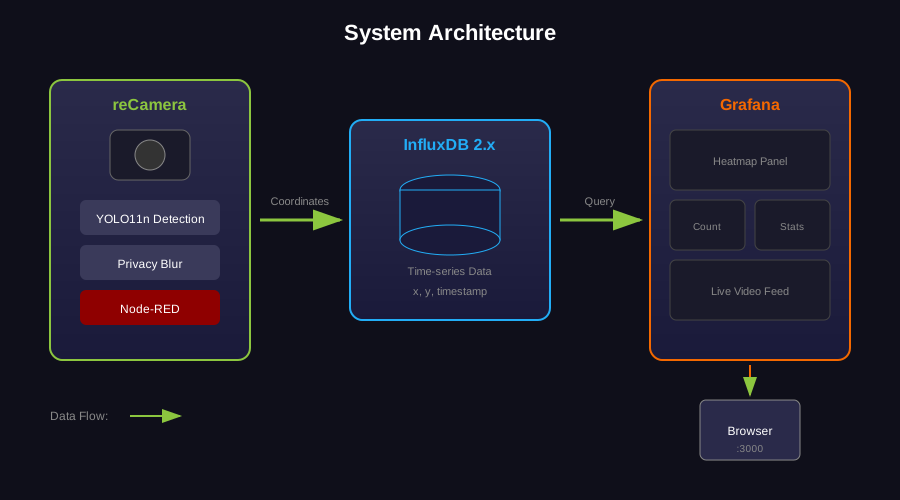
Deploy the full stack (YOLO detector + InfluxDB + Grafana + MQTT) on Jetson via SSH.
Target: Remote Jetson {#jetson_remote type=remote config=devices/jetson.yaml default=true}
Deploy to Jetson via SSH. First-time TensorRT engine compilation takes 2-5 minutes.
Troubleshooting
| Issue | Solution |
|---|
| Connection timeout | Check network, verify Jetson IP with ping |
| NVIDIA runtime error | Run nvidia-smi on Jetson to confirm GPU access |
| No video feed | Verify RTSP URL with ffprobe rtsp://... |
| Slow first startup | TensorRT engine compilation (one-time, 2-5 min) |
Step 2: View Dashboard {#jetson_dashboard type=manual required=false}
Open the Grafana dashboard to see real-time detection data.
How to Do It
- Open http://<jetson-ip>:3000 — login
admin / admin
- Live video feed: http://<jetson-ip>:5001 — MJPEG stream with detection boxes
Troubleshooting
| Issue | Solution |
|---|
| Dashboard shows no data | Wait 1-2 minutes for first data points to arrive |
| Cannot open Grafana | Run docker ps on Jetson to check services |
Deployment Complete
Your Jetson heatmap system is running!
Access your services:
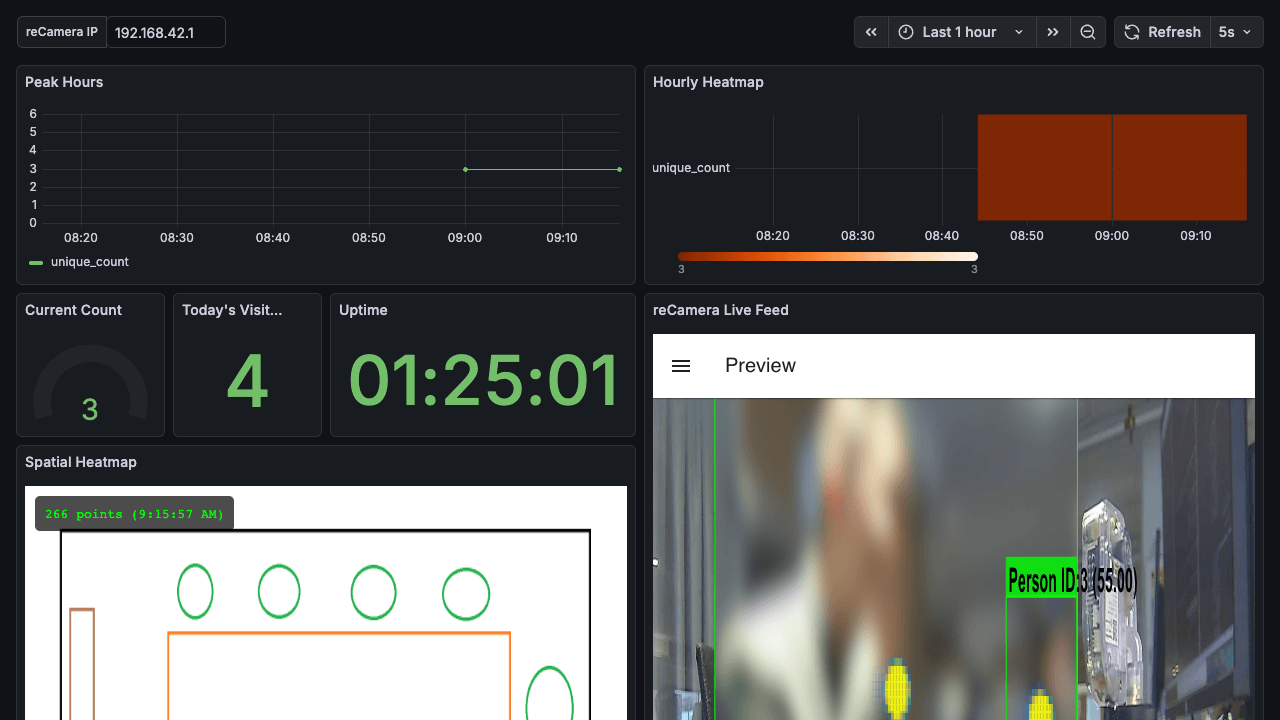
- Data Dashboard: http://<jetson-ip>:3000 — Grafana charts and trends
- Live Detection: http://<jetson-ip>:5001 — YOLO detection with heatmap overlay
Preset: AI Camera Direct {#recamera}
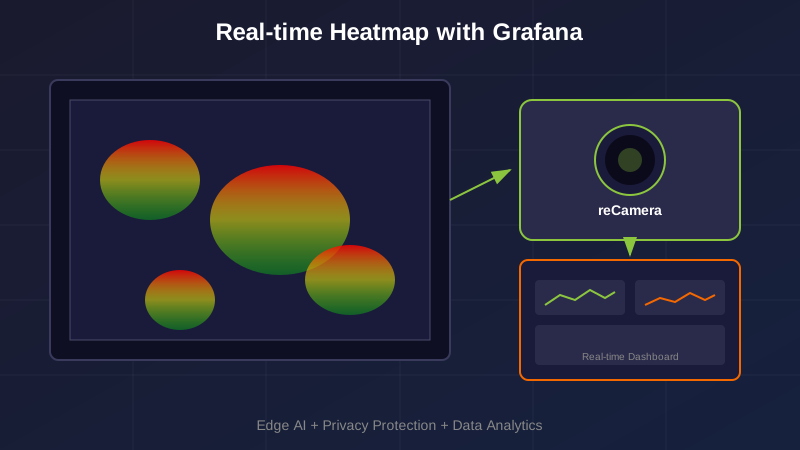
Plug in a reCamera and start tracking — the camera handles AI detection on its own, just add a computer for the dashboard.
| Device | Purpose |
|---|
| reCamera | AI camera that detects people and sends location data |
| Computer or reComputer R1100 | Runs Grafana dashboard + InfluxDB |
What you'll get:
- View daily/weekly traffic trends with charts
- Customize dashboard layout
- Export data for analysis
Requirements: Docker installed · Same network for all devices
Step 1: Start Data Dashboard {#backend type=docker_deploy required=true config=devices/backend.yaml}
Start the data storage and chart display services on your computer (or a dedicated server).
Target: Run on This Computer {#backend_local type=local config=devices/backend.yaml default=true}
Wiring

Make sure Docker Desktop is installed and running, with at least 2GB free disk space.
Troubleshooting
| Issue | Solution |
|---|
| Port conflict error | Close the program using port 8086 or 3000 |
| Docker not starting | Open Docker Desktop application |
| Stops after starting | Make sure you have at least 4GB RAM |
Target: Run on Another Device {#backend_remote type=remote config=devices/backend_remote.yaml}
Wiring

| Field | Example |
|---|
| Device IP | 192.168.1.100 or reComputer-R110x.local |
| Username | recomputer |
| Password | 12345678 |
Troubleshooting
| Issue | Solution |
|---|
| Connection timeout | Check network cable, test with ping |
| SSH authentication failed | Verify username and password |
Step 2: Connect Camera to Dashboard {#recamera type=recamera_nodered required=true config=devices/recamera.yaml}
Tell reCamera where to send the traffic data.
Wiring
- USB connection: IP address
192.168.42.1, plug and play
- Network/WiFi: Find reCamera's IP in your router admin page
- Enter reCamera IP and Dashboard Server IP (from Step 1)
Troubleshooting
| Issue | Solution |
|---|
| Cannot connect | USB: use 192.168.42.1; Network: check router for IP |
| No data showing | Make sure Step 1 completed; camera and server on same network |
Step 3: Map Heatmap to Floor Plan (Optional) {#heatmap type=manual required=false}
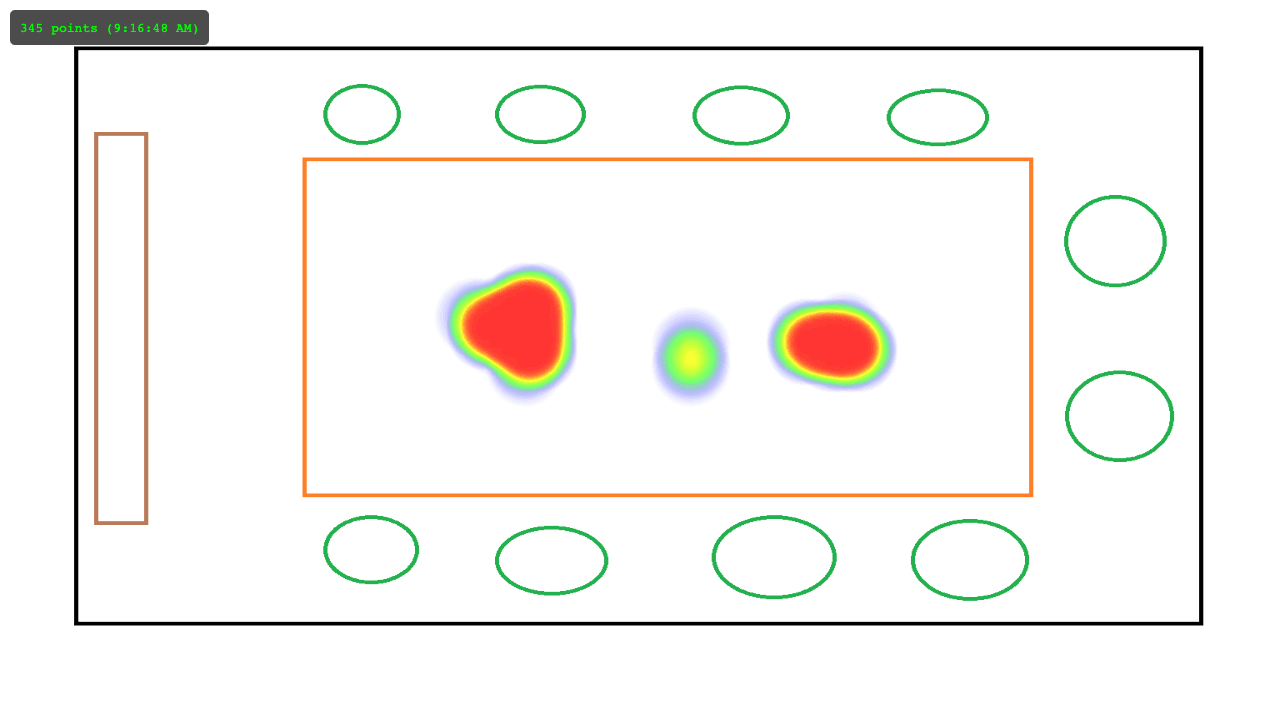
By default, the heatmap shows the camera's perspective. To display it on your store's actual floor plan, use the built-in calibration tool.
How to Do It
- Open http://<server-ip>:8080 in your browser
- Click the gear icon (top-right corner) to open calibration settings
- Upload a camera screenshot (left side) and your floor plan image (right side)
- Click 4 matching reference points on the camera view, then the same 4 spots on the floor plan
- Click Save — calibration is applied immediately
Tips: Choose widely-spaced landmarks like corners, pillars, or doorways as reference points.
Troubleshooting
| Issue | Solution |
|---|
| Heatmap doesn't align well | Re-open settings, click Reset, and recalibrate with better reference points |
| Calibration lost after clearing browser data | Open settings and recalibrate — settings are stored in your browser |
Skip This If
You only want to see the camera-view heatmap without mapping to a floor plan.
Deployment Complete
Your heatmap dashboard is ready!
Access your services:
- Data Dashboard: http://<server-ip>:3000 — login
admin / admin, view traffic charts and trends
- Live Heatmap: http://<server-ip>:8080 — real-time heatmap overlay (calibrate via gear icon)
Both services start automatically with Step 1.
Having issues?
- No data? Check that reCamera is connected (Step 2)
- Can't open pages? Run
docker ps to check services are running