空間 AI エージェントを構築する
入ってきた人を識別して、会話を大画面にリアルタイムに映し出します。
AI アシスタントに顔を認識させ、人を記憶させ、能動的にサービスさせる
再利用できる現場テンプレート
人の出入りがあり、顔を識別できて、会話をその場の人全員に見せたい屋内スペース。
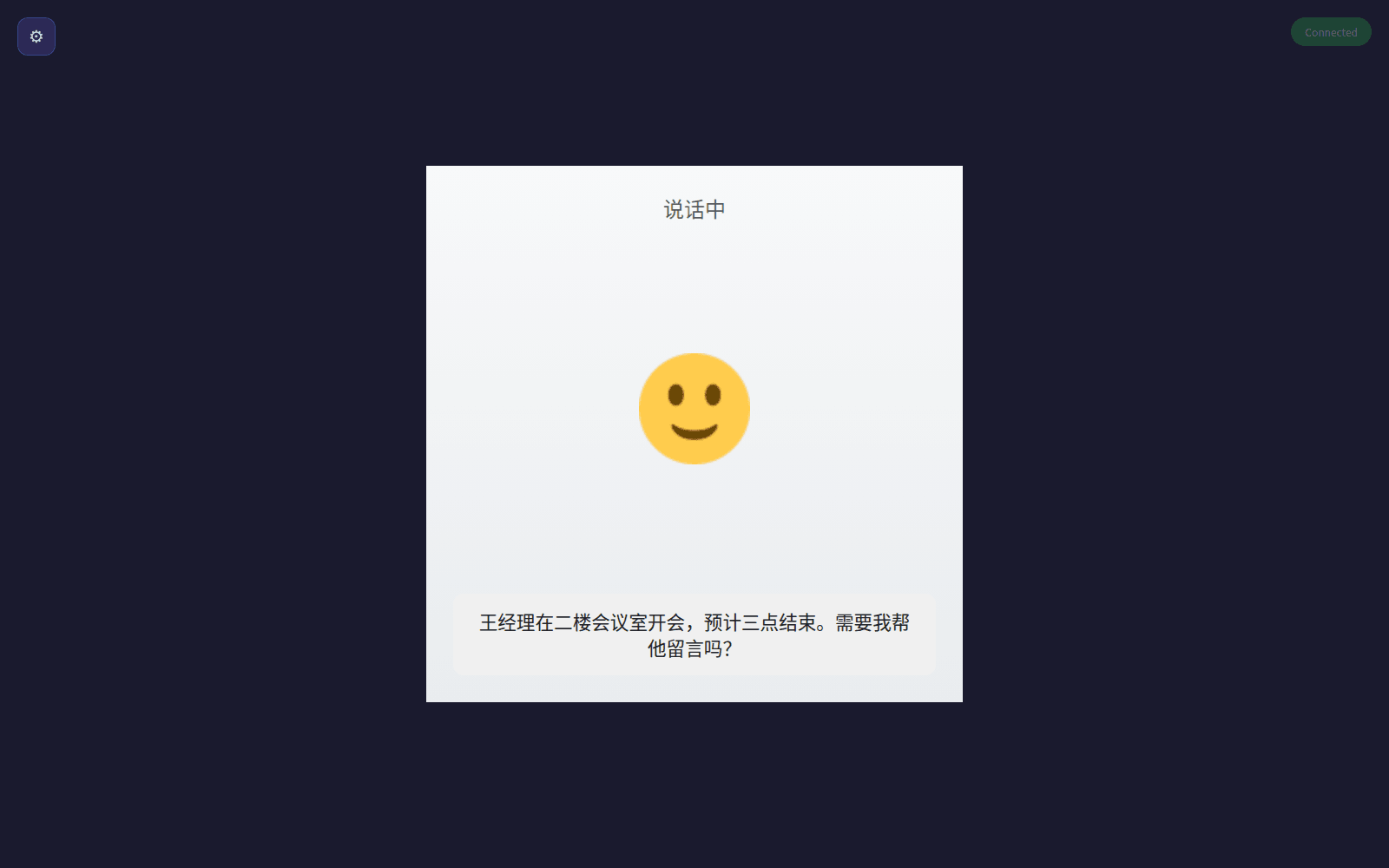
家庭の玄関とリビング
家族が帰宅すると名前で挨拶し、知らない人には注意を促します。表示ページを開いておけば、やり取りがテレビに映ります。
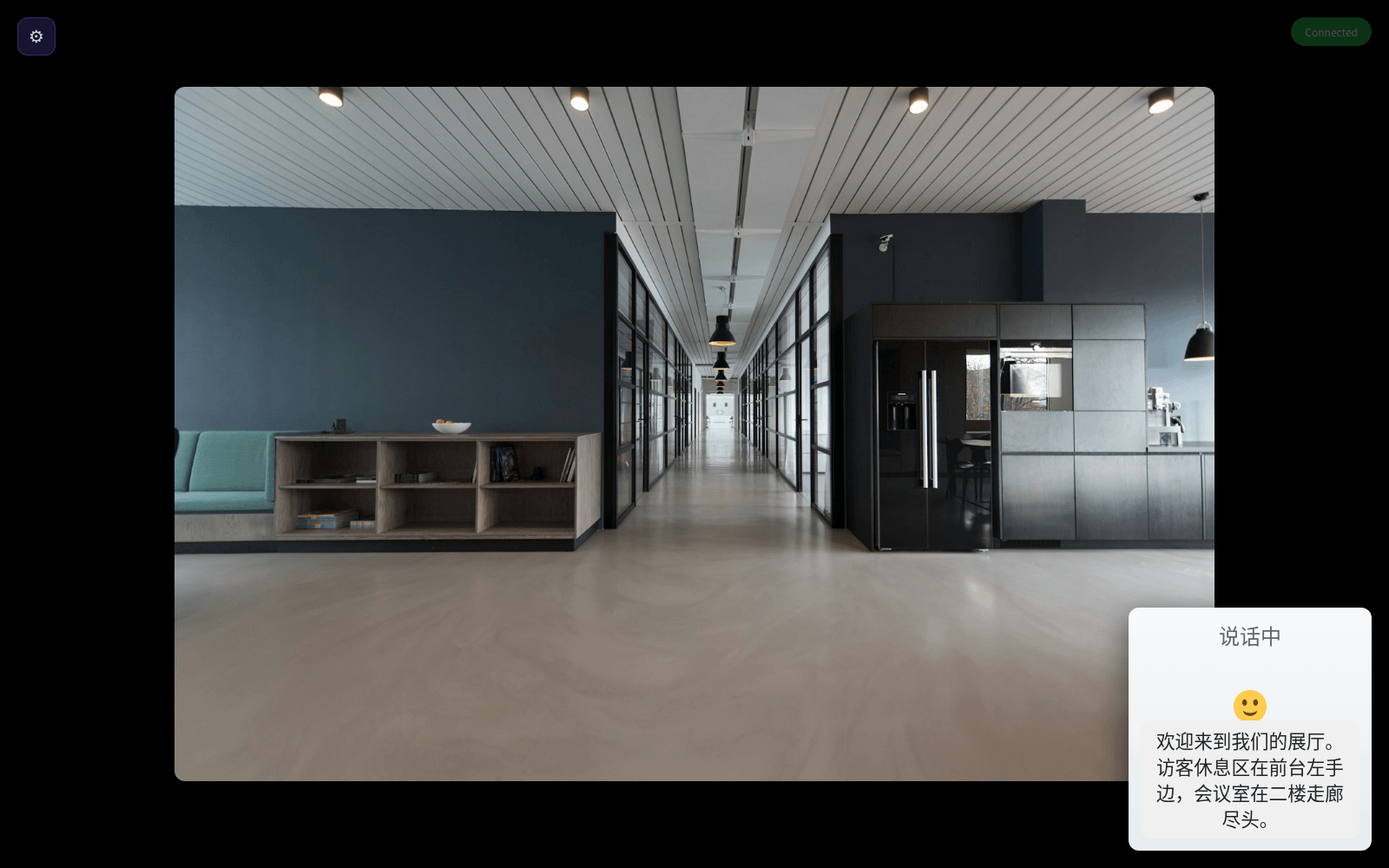
受付カウンターとショールーム
登録済みの来訪者を名前で迎え、ナレーションモードは背景画像とともに館内のご案内をその場の人に表示します。
会議室とワークエリア
朝は同僚の顔を認めて挨拶。表示サービスは大画面のあるホストに導入し、ブラウザですぐ開けます。
不向きなケース:光が暗い場所や横顔しか写らない場所、20 名以上の顔を識別する必要がある場所。
どう実現するか
SenseCAP Watcher または reTerminal D1001 が音声と顔認識の入り口になり、表示サービスは同一 LAN 内の reComputer で動作し、会話は HDMI の大画面に表示されます。
3 つだけです。カメラ付きの音声端末、任意の表示ホスト、HDMI 画面。顔認識は端末内で完結し、顔リストはデバイス上に留まります。
Voice Terminals
2 種類の端末があり、タッチスクリーンが必要かどうかで選びます。
| 端末 | 画面 | 認識方式 | 適する場合 |
|---|---|---|---|
| SenseCAP Watcher | 小型丸形画面 | デバイス内 AI チップ、最大 20 人 | 机上やフロント。既存の Watcher はファームウェア更新のみで可 |
| reTerminal D1001 | 8 インチタッチスクリーン | 顔を検出すると起動。任意でリモート認識器を使い既知の人物で起動可 | 壁面やカウンター。Wi-Fi 設定、字幕、画面上の選択操作向け |
設置位置が認識精度を決めます。 通常の室内光、顔の高さ、正面から人物を捉える配置。横向きや暗い照明では精度が下がります。
Display Host
Display Cast パッケージのみこれらが必要です:Docker を実行するホスト、および HDMI 画面。
- ホスト:reComputer R10 シリーズ(R1100)、または既存のコンピュータ。表示サービスに AI 演算は不要です。
- 画面:テレビまたはモニター。ブラウザで表示ページを開き、F キーで全画面にします。
- ネットワーク:端末とホストは同じローカルネットワーク上に置きます。端末は名前で画面を探します : 「リビングのディスプレイに投影して」のように話しかけます。
Screen & Browser
- 大画面:HDMI で表示ホストに接続し、同じローカルネットワーク上のブラウザで表示ページを開きます。
- D1001 プッシュパネル:同じローカルネットワーク上の任意のブラウザで D1001 を開きます。
- 顔リスト:コンピュータを USB で端末に接続し、デプロイページから管理します。
データインターフェースは下の「何が取り出せるか」を参照してください。
どこまでできるか
起動後、来客と受付スタッフが大画面で見るもの。
実測データ
以下の機能と条件は導入ガイドに基づくもので、現場での精度試験ではありません。
| 機能 | 条件と制約 |
|---|---|
| 登録済みの人物を認識し、名前で挨拶する | 最大 20 名。屋内の通常照明で、正面向きの顔 |
| 新しい人物を登録する | カメラの正面で約 5 秒の撮影 |
| 会話を大画面に表示する | 端末とディスプレイホストが同一ネットワーク上、HDMI 接続のスクリーン |
| 顔による起動(D1001) | 顔を検出すると起動します。既知の人物を識別するには別途認識機能が必要です |
顔認識と画面キャストは別々に導入でき、互いに影響しません。暗所や横顔では認識精度が落ちるため、入退室管理や勤怠の根拠には使えません。
何が取り出せるか
導入後の入口は次のとおりです。
| 入口 | 得られるもの |
|---|---|
| 音声 | ウェイクワード「Xiaozhi Xiaozhi」。名前での挨拶と回答。音声コマンドで認識のオン/オフ、人物の削除、「誰を知っている?」への回答、顔なじみモードの切り替えができます |
http://<host-ip>:8765 | 表示ページ:リアルタイムの会話、全画面、ナレーションモード |
http://<D1001-ip>:8080 | D1001 プッシュパネル:テキストと画像、画面上の選択肢、カメラのスナップショット |
| 顔一覧パネル(導入ページから USB 経由) | 顔の登録・一覧・削除 |
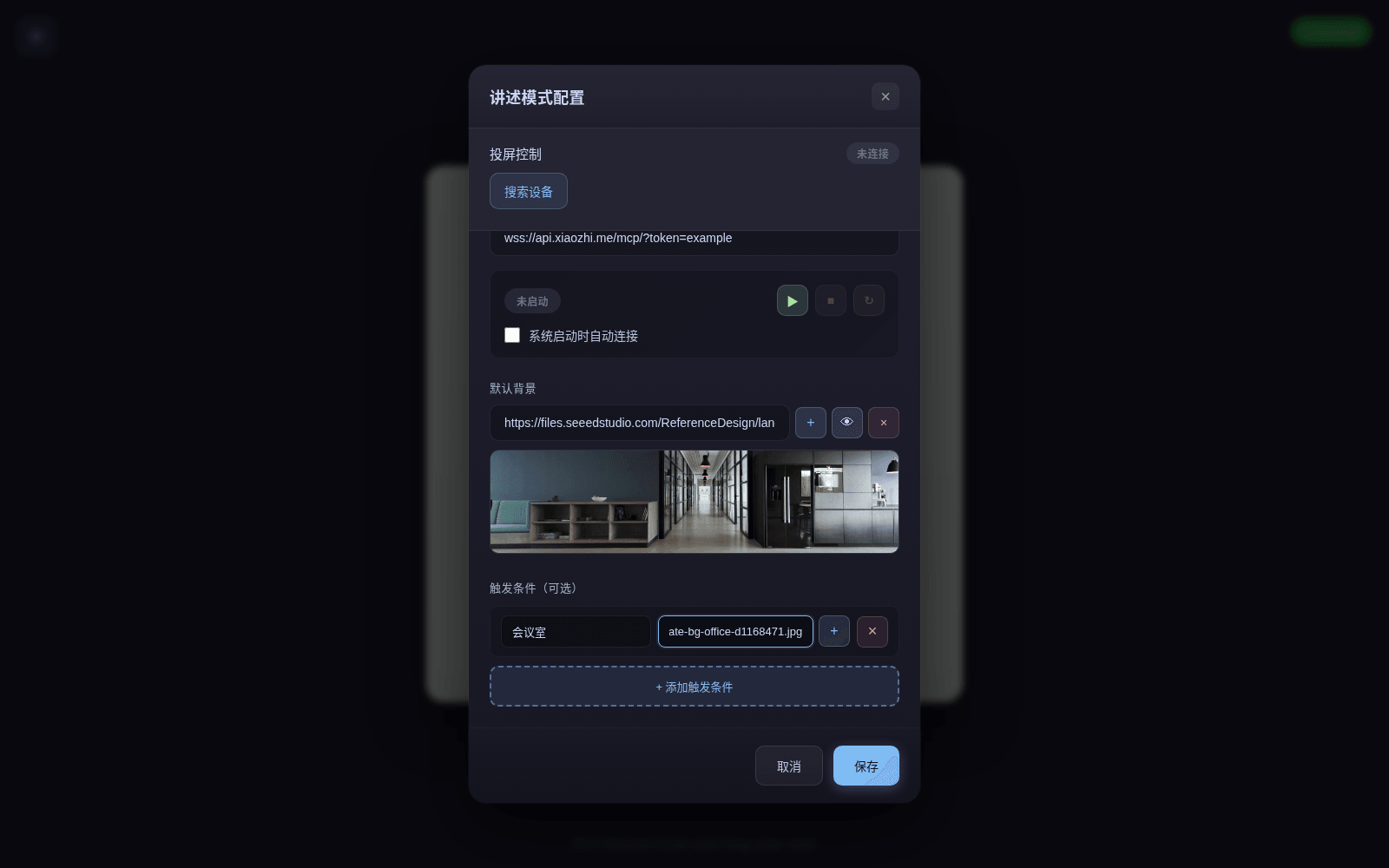
顔なじみモードでは見知らぬ人だけを知らせ、既知の人物への個別の挨拶をやめます。ナレーションモード:表示ページの設定でキーワードと画像 URL の組を登録すると、会話でそのキーワードが出たときに背景画像が切り替わります。見学案内やプレゼンテーションに使えます。
どう導入するか
現場の状況をお聞かせください。ハードウェアはこちらで選び、その後データ接続と手順に進みます。
構成を選ぶ
空間の状況をお聞かせください。ハードウェアはこちらで選びます。
表示先
会話をどこで見せますか?回答ごとにファームウェアが異なるため、デバイスは同時に 1 つの役割だけを担います。
構成を選ぶ
空間の状況をお聞かせください。ハードウェアはこちらで選びます。
顔認識
Xiaozhi と顔認識ファームウェアを書き込んだ SenseCAP Watcher 1 台。登録済みの人物を名前で迎えます。顔の登録と管理は Web パネルから行います。書き込みには USB-C データケーブルが必要です。
硬件/物料名称 数量 型号/SKU 说明 SenseCAP Watcher 1 113991275 - 画面キャスト
SenseCAP Watcher が、自社コンピュータ上の表示サービスを通じて会話をスクリーンにキャストします。ナレーションモードでは、キーワードに応じて背景画像が切り替わり、見学案内に使えます。
硬件/物料名称 数量 型号/SKU 说明 SenseCAP Watcher 1 113991275 - 画面キャスト + 表示ホスト
同じキャスト構成に、表示サービスを動かして HDMI でスクリーンに接続する reComputer R1100 を加えたものです。
硬件/物料名称 数量 型号/SKU 说明 SenseCAP Watcher 1 113991275 - reComputer R1100 1 113991374 - reTerminal D1001 音声エージェント
8 インチのタッチスクリーン上で動く Xiaozhi。Wi-Fi の設定は画面上で行い、内蔵カメラによる顔起動と、コンテンツや選択肢を画面に送るポート 8080 のプッシュパネルを備えます。書き込みには USB-C データケーブルが必要です。
硬件/物料名称 数量 型号/SKU 说明 reTerminal D1001 1 100058144 -
よくある質問
顔認証やローカル表示機能は完全オフラインで動作します。
- ローカル動作:顔検出・人物照合・ローカル顔データベース管理は端末内で完結
- 音声対話:XiaoZhi クラウドサービスや外部 LLM による音声対話を行う場合のみインターネット接続が必要です。
登録顔写真や特徴量データが外部クラウドへ送信されることはありません。
すべての登録顔データは端末内のセキュアストレージにのみ保存され、登録・編集・削除もローカル管理パネルまたは音声指示で完結します。
空間案内や来訪者への挨拶を目的とした軽量認識であり、厳密な入退室管理には向きません。
- 利用シーン:通常の室内照明下での来客おもてなし、パーソナライズされた空間演出
- 非対応用途:なりすまし防止(生体検知)を搭載していないため、セキュリティ扉の解錠や公式な勤怠打刻には適しません。
最大 100 名規模の顔データを登録可能で、HDMI 経由でディスプレイやプロジェクターへ出力できます。
- 登録上限:快適な照合レスポンスのため数十〜100 名程度の運用を推奨
- 映像出力:ホスト端末の映像出力ポートから大型ディスプレイへ案内 UI を全画面表示可能です。
来訪者の正面顔を捉えやすい受付カウンターやエントランスへの設置を推奨します。
- 推奨環境:逆光を避け、床から 1.2〜1.5 m の高さにカメラを設置
- 電源・ネットワーク:安定した AC 電源と、対話サービス連携用の Wi-Fi / 有線 LAN を確保してください。
MQTT メッセージや HTTP Webhook を介して、来訪通知を社内システムへ即時連携可能です。
認識された人物 ID や来訪タイムスタンプを Slack、Teams、社内グループウェアへ自動通知する連携が容易に構築できます。
ウェルカムメッセージ、画面レイアウト、AI キャラクターの対話トーンを自由に編集できます。
Web 管理画面から会社ロゴの登録、プロンプト指示(企業案内・フロアマップ・営業時間等のナレッジ)の更新が可能です。
オープンソースのランタイム規約および接続する LLM API の利用規約を確認してください。
自社施設での運用や商用顧客へのシステム納品に際し、各クラウドサービスの商用規約およびプライバシー告知ポリシーを遵守してください。
お探しの答えが見つかりませんか?
お問い合わせ
ハードウェアパートナーとしてうれしいです!